Feature walkthrough · Bots
Bots in Amble: named assistants that run on your computer
A Bot has its own name, instructions and history. It works while you do something else, on the machine you chose.
Most assistants start every day blank. You reopen a chat, restate the job and paste the same context. A Bot keeps that setup: a name, instructions, references and a list of its recent conversations. You give it work, and it carries on in the background while you do something else.
What a Bot is
A Bot is an assistant with its own identity inside Amble. The name, the instructions and the references belong to the Bot, separate from whatever you ask it to do today. Open Bots in the main navigation and you get a roster rather than a single chat box.
Each Bot runs on the computer you select, using the model and profile that computer offers. Your files and the agent process stay there. Close the pane and the conversation is still waiting when you come back.
Bots is part of the main app, so there is no switch to flip. It is available once Amble is running on a host.
Set one up
- Open Bots and pick one from the list. The plus next to the Bots heading creates a new Bot instead and opens its settings.
- Give it a name in its settings before you chat. Name, instructions, the Spaces it may use and its default destination all live there. You can review them without losing a draft.
- Start its next chat with the plus on the Bot's row, or New chat inline. The composer uses the selected computer and the models and profiles that computer offers.
- Send the first message. Amble asks you to approve what the Bot can do before it starts.
- Review Tools. Every registered tool has two separate choices, Enabled and Ask first. Manage registered tools opens that computer's Tools settings.
Switching between Bots keeps your drafts, and it does not stop work that is already running.
Approvals decide more than settings do
Your Bot settings are preferences, not permissions. The computer decides what a Bot can actually do, which is why a saved switch is not proof that a tool is being enforced.
Newly discovered connected operations start with Ask first on. A tool that was discovered is not automatically allowed. If a Bot cannot use a tool, check both switches, then check the computer's Tools settings.
Naming a Bot grants nothing. Connected accounts, browser control, research and knowledge tools, and posting to outside services each need their own permission.
Put it on a schedule
Schedules run recurring work. Open Schedules, choose the computer and project that will run the task, and write the task itself. Then pick the conversation behavior: a new conversation for independent runs, or an existing conversation for a heartbeat that keeps its context.
Set a repeat preset and time zone, or enter exact cron, and review the next run before saving. Run once tests it immediately. Pause stops later runs and Resume turns them back on. Pausing future runs does not stop a conversation that is already running, and deleting a schedule asks for confirmation.
A concrete Bot
Say you want a test summary before you start work. Create a Bot called "Morning tests". Its instructions: run the test suite in this project, summarize the failures, and name the files involved. Turn on the terminal tool with Ask first so you see each command before it runs. Then add a schedule on the same computer for 7:30 on weekdays, starting a new conversation each run.
Two things make that useful. The instructions are stored with the Bot, so you never retype them. The schedule runs the same task every morning without you opening a chat.
What it cannot do
- The host has to be awake, running Amble and reachable. A Bot is not a cloud job, and a saved schedule is not one either.
- A Bot cannot use a tool you have not enabled, or run an operation you have not approved.
- Naming a Bot, or asking an agent to create one, grants no connections.
- A vague instruction produces a vague run, on a timer.
That trade is the design. The work stays on your computer, so your computer has to be there for it. Bots that live in someone else's cloud make the opposite trade, and that comparison deserves its own post.
Next step
Create one Bot with a narrow job you already repeat by hand. Give it the instructions you would give a new colleague, enable only the tools it needs with Ask first on, run it once, then put it on a schedule.
How this walkthrough was checked
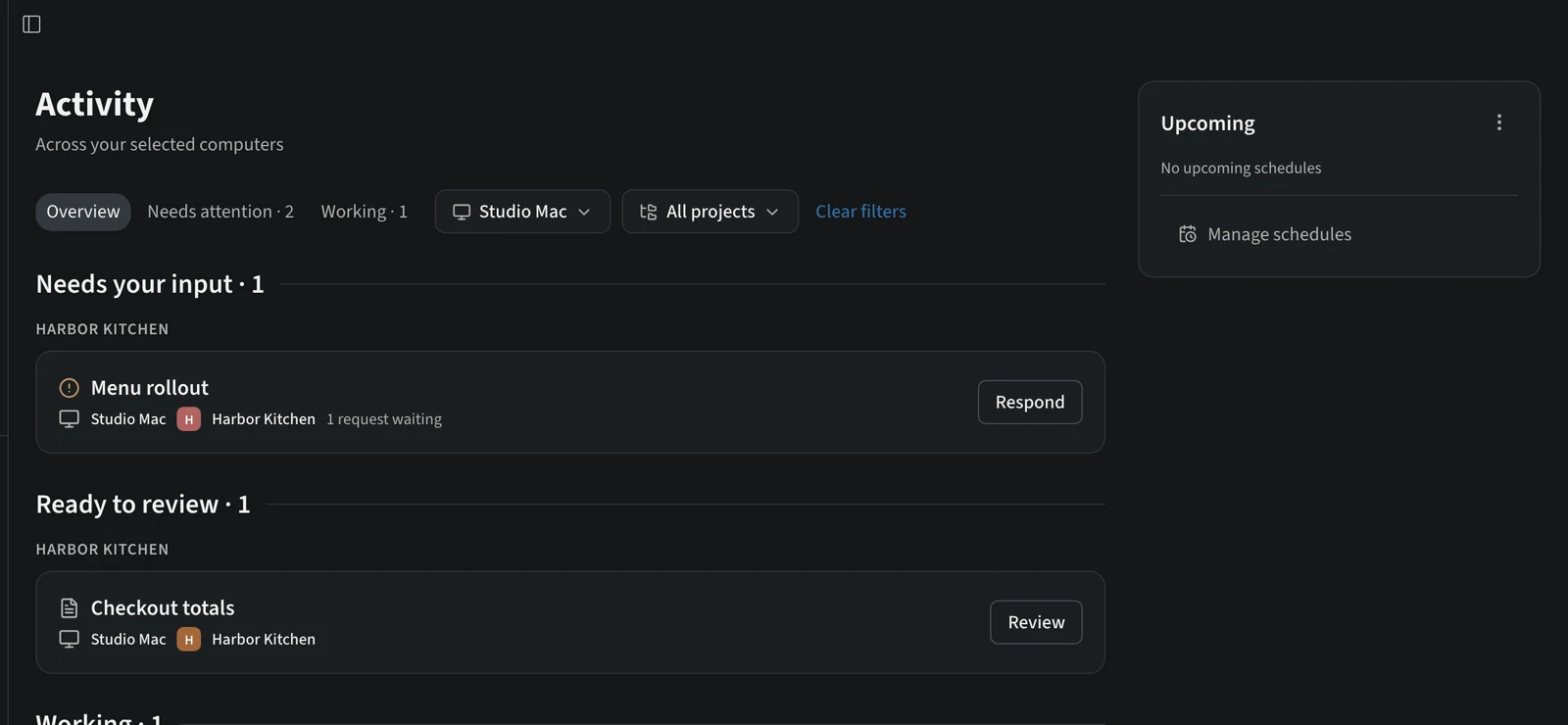
Every label and behavior above comes from the shipped Bots and Schedules pages in the product documentation, checked on November 23, 2026, not from a mockup. The Activity screenshot is published in the same documentation. If your build shows a different label, the documentation page is the reference.