Run an AI model on your own computer
Download a free model, check that it replies, then use it for coding in Lyre. No cloud account needed.
On this page
How it fits together
Three pieces work together. You install the first one, download the second, and Lyre connects the third.
- 1 · Runner
- An app that runs AI models on your computer, such as Ollama or LM Studio.
- 2 · Model
- The AI itself: a file you download through the runner, usually a few gigabytes.
- 3 · Coding agent
- The assistant in Lyre that uses the model to read and edit your project.
Set this up on the computer that runs Lyre. Your phone or tablet uses that computer’s model through Lyre; it never downloads a model itself.
- Lyre open on your computer.
- An internet connection for the downloads.
- Free disk space and enough memory for the model and your other apps. The size is shown before you download; the recorded example model was about 2.5 GB.
Choose a runner
Pick one. If you’re not sure, choose Ollama: it has the fewest steps and Lyre finds it automatically.
Install the runner you chose from its official site, then continue. Installing the runner and downloading a model are two separate steps.
Step 1 · Download a model and get a reply
Before involving Lyre, make sure the model works on its own. Choose your runner:
With Ollama
-
Open a terminal
On Windows open PowerShell. On macOS or Linux open Terminal.
-
Download a small model
Paste this and press Enter. The download can take a few minutes; wait until it says
success.ollama pull qwen3:4b-instruct -
Ask it something
ollama run qwen3:4b-instruct "Say hello in one sentence."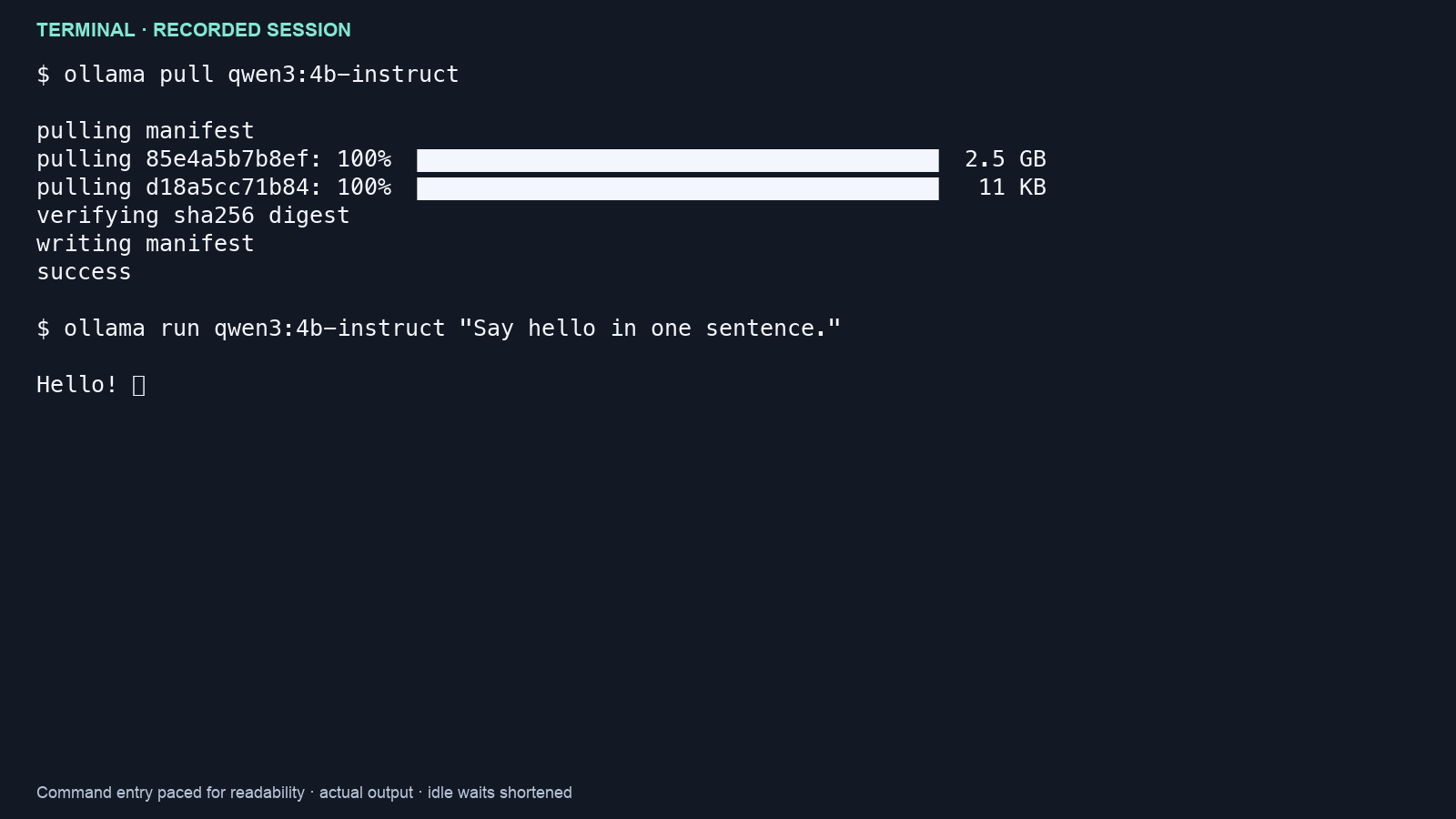
A successful download and first reply.
The Local Models window can check for Ollama on this computer, link to the official download and, after you review the model’s license and size, download a recommended model for you. Lyre never installs Ollama itself.
With LM Studio
-
Find a model
Open LM Studio and go to Discover. Pick a small model; LM Studio shows whether it fits your computer.
-
Download and chat
Download it, load it in Chat, and send a short message such as “Say hello.”
-
Start the local server
Open the Developer tab and start the server. Lyre connects to this server, so leave it running. LM Studio’s instructions →
With llama.cpp
-
Download a build
Extract the official release for your computer from the llama.cpp releases page.
-
Start the server with a model
Run
llama-serverwith a GGUF model file and a port, for example8085. Keep that terminal open. -
Check it replies
Open the address it prints in your browser and send a message. The full walkthrough has copy-ready commands for macOS, Linux and Windows.
the model answered your message. If it didn’t, fix that first: Lyre can’t use a model that doesn’t reply on its own.
Step 2 · Add the model in Lyre
-
Open local models
In Lyre, go to SettingsAI & agentsConnections and choose Local models. Older layouts show Providers directly in Settings.
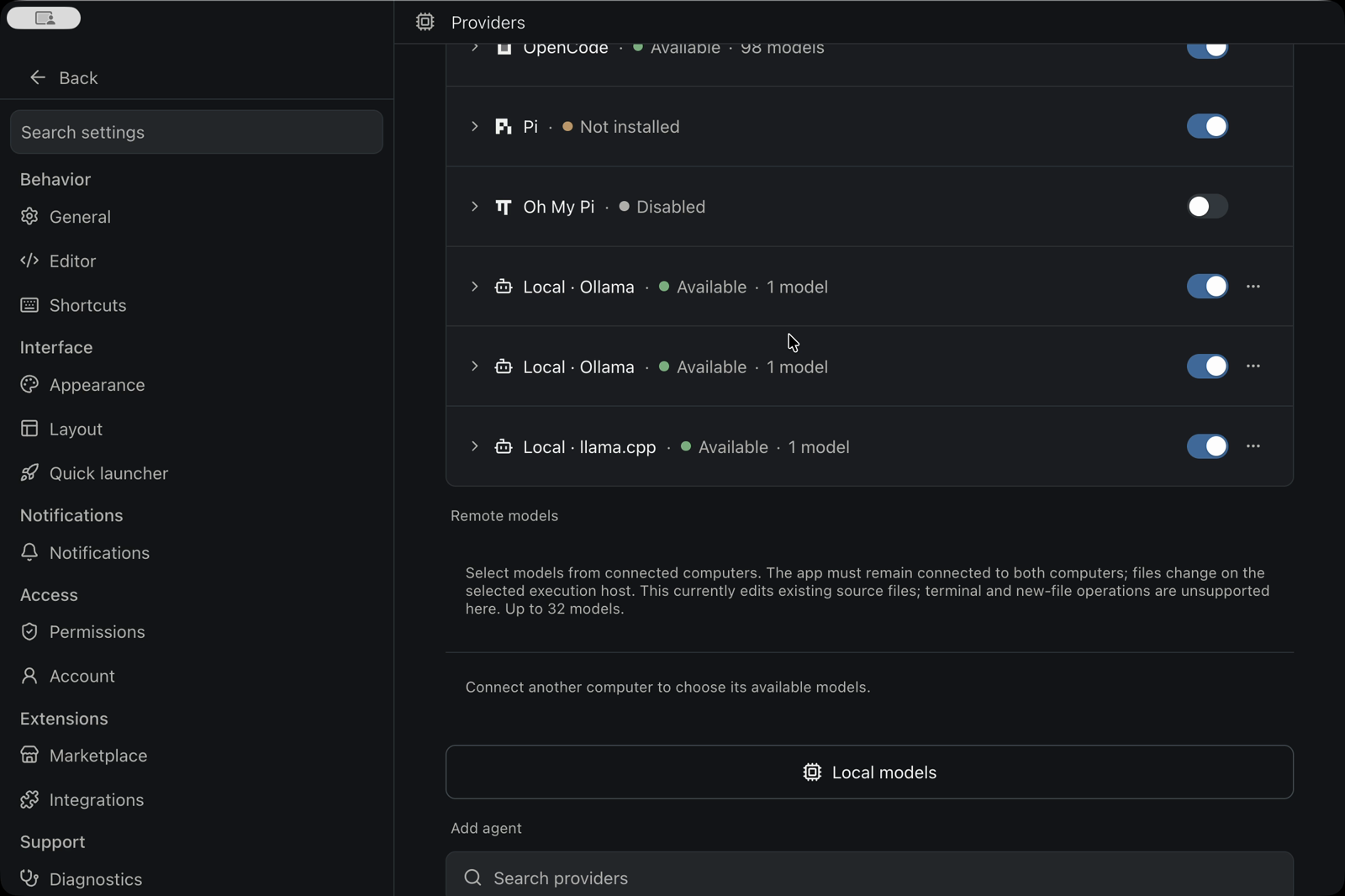
Earlier recorded layout: the current Connections tab is inside AI & agents. -
Let Lyre find your model
Lyre scans this computer for running model servers. Choose Add beside the model you downloaded.
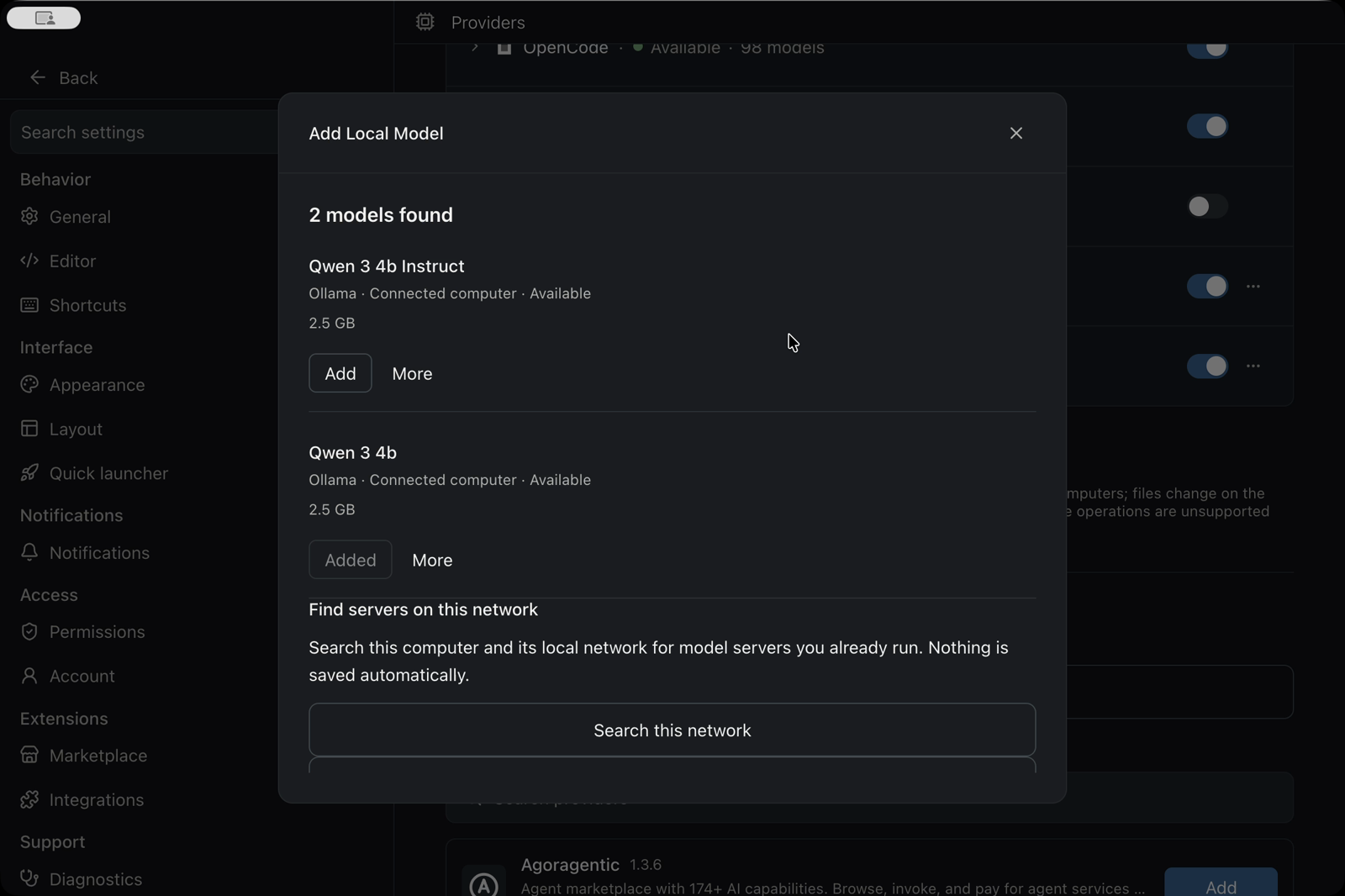
Found models appear with their size and where they run. Not listed? Make sure the runner (or LM Studio’s server) is running, then choose Scan Again.
-
Choose Use Model
When it shows Ready to use, select Use Model. The model now appears in the model picker for new conversations.
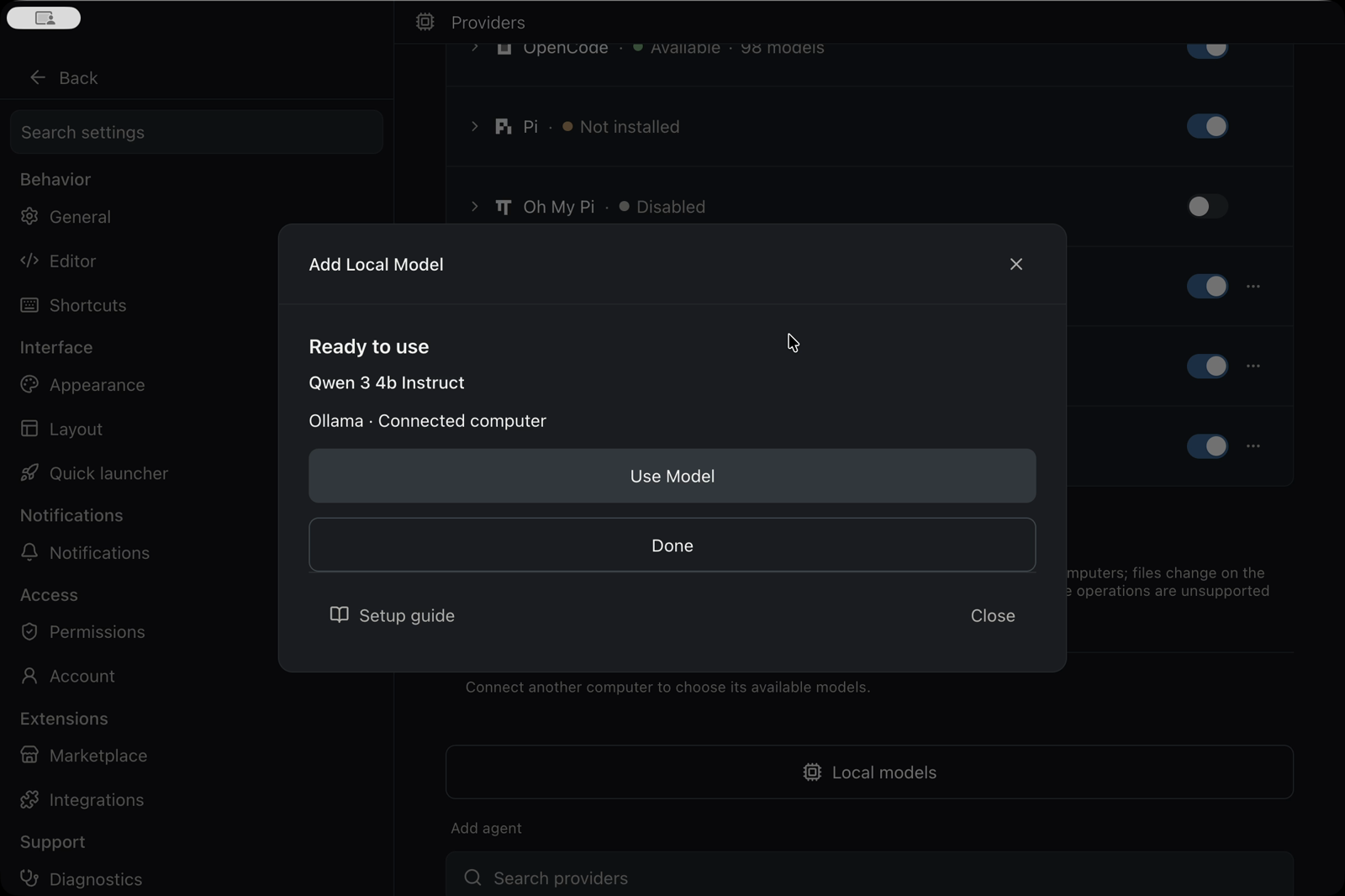
The saved connection is ready to select. Confirm a real reply in your next conversation.
Under Don’t see your model? choose
Connect to a local server, enter the server address (for
example http://127.0.0.1:8085), and select
Test Connection. When it shows Connected, add
the model as above.
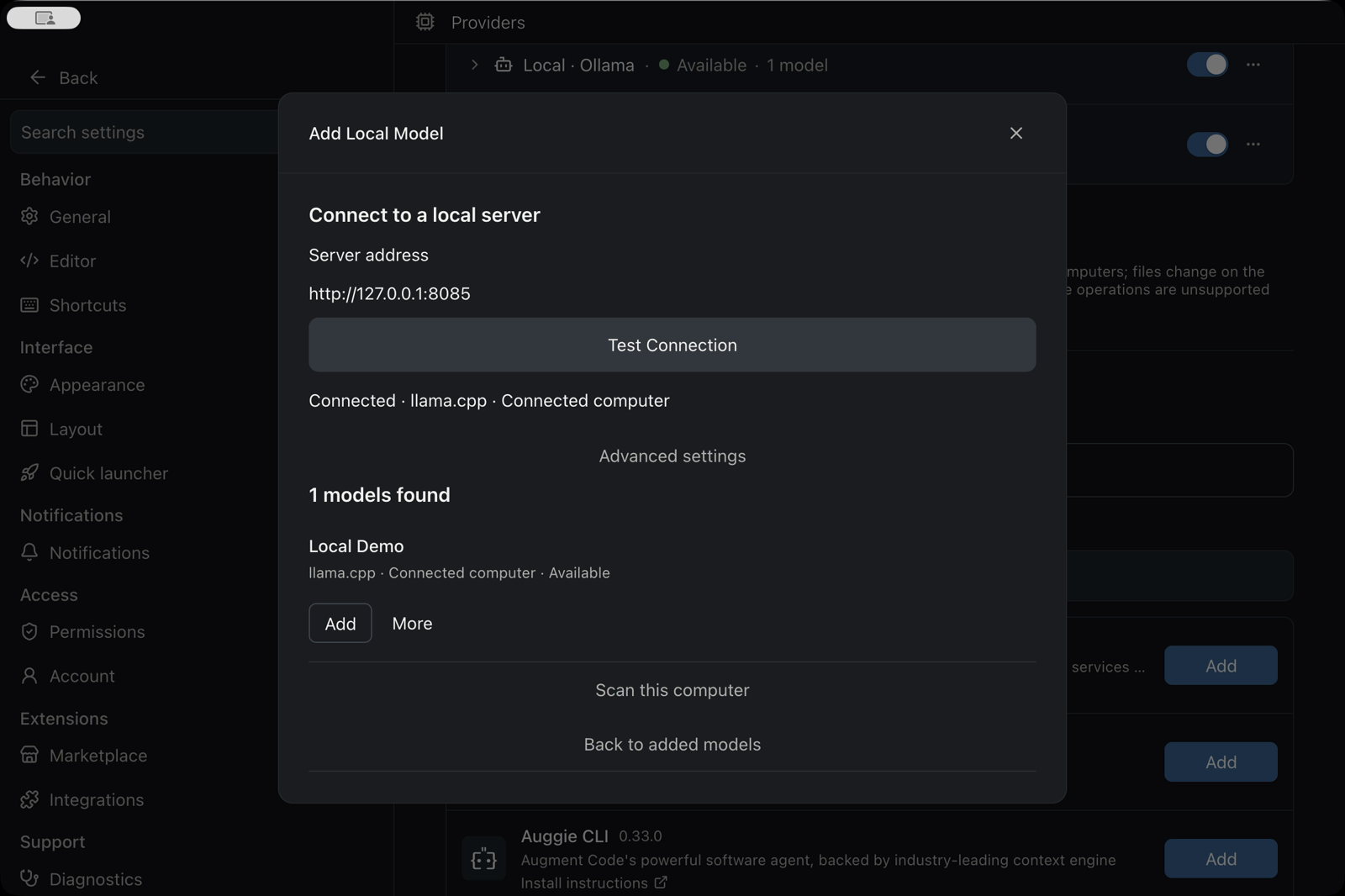
If Lyre asks to set up OpenCode, accept: it’s the coding agent that uses local models.
Step 3 · Try it on your project
-
Start a new conversation
Open a test project and start a new agent. Check that your local model is selected in the composer.
-
Ask a read-only question first
Read README.md and summarize it in three bullet points. Don't change files or run commands.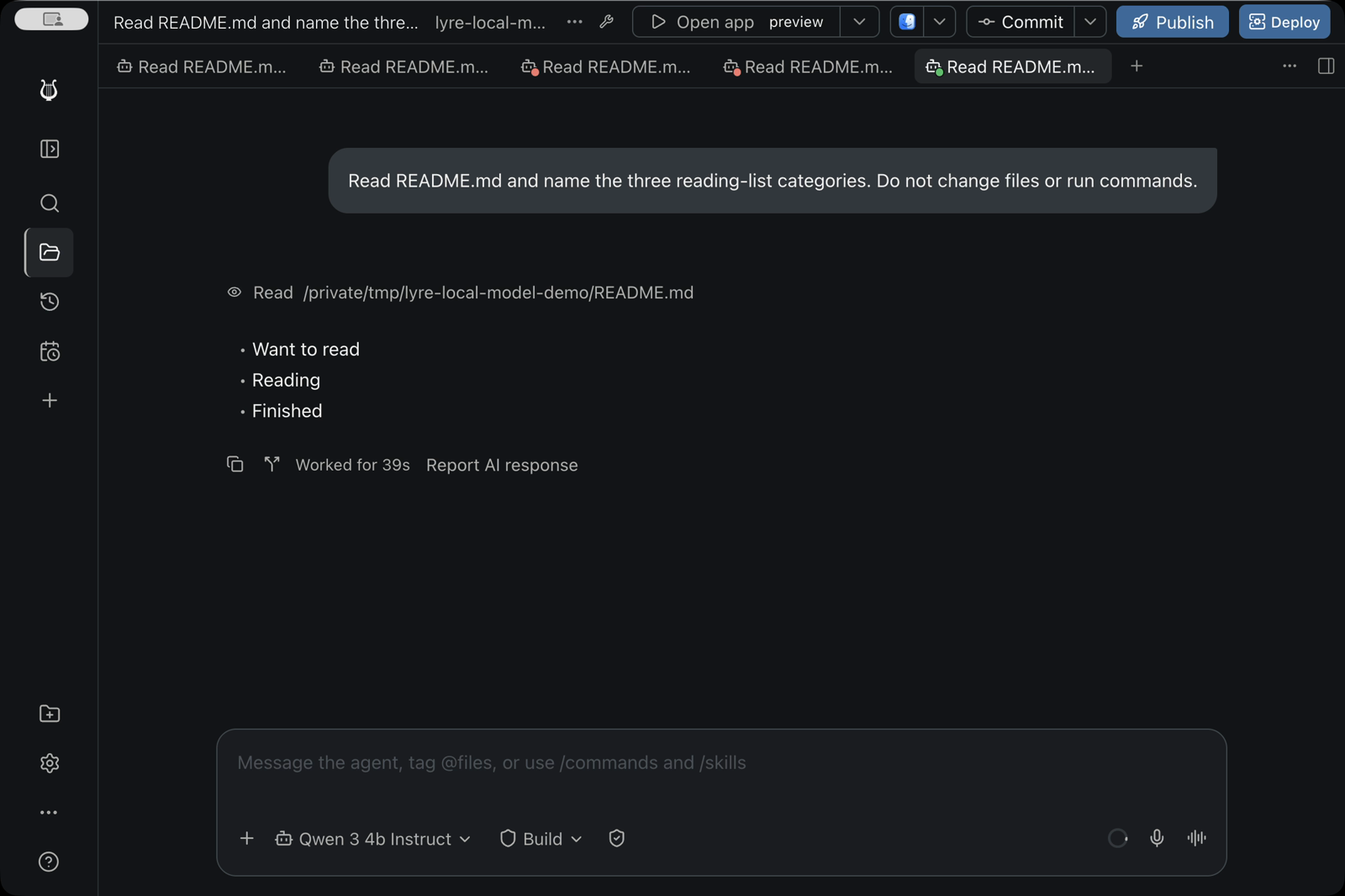
A local model answering from the project’s own files.
the answer mentions what’s really in your file. Now you can ask for small edits and review each change before asking for the next.
Choosing a model your computer can handle
Start small. Choose a model that fits your available memory, then try it on a small task. Model size alone does not tell you how well it will code. Leave memory for Lyre, your project and the model’s conversation context.
- Let Lyre suggest one. On newer hosts, the Local Models window recommends a model this computer can actually run, based on its memory.
- Look for tool support. A model that chats well may still struggle to edit files. Coding agents need models that support tool use.
-
Context matters. Context is how much of your conversation and project
the model can consider at once. Ollama recommends at least 64,000 tokens for agent
work; check the allocation with
ollama pswhile the model is loaded. Ollama’s memory guide → - Check the license before using a model for commercial work.
If something doesn’t work
- Lyre says no local models were found
- Start the runner (for LM Studio and llama.cpp, the server) and choose Scan Again. A downloaded model that isn’t being served can’t be found.
- Test Connection fails
-
Check the exact address and port printed by your server. Keep it on this computer
(
localhostor127.0.0.1); connect your phone through Lyre, not directly to the server. - Replies are very slow, or it runs out of memory
- Try a smaller model, close other memory-heavy apps, and keep tasks small.
- It chats but can’t edit files
- The model may not support tool use, or its context is too small for agent work. Try a model built for coding or tools.
For the localhost setup in this guide, inference runs on the computer serving the model. Cloud models, web tools and other connected services you choose may still send data elsewhere. Model files belong to the runner: uninstalling or updating Lyre doesn’t delete them.
Want a longer tutorial with every screenshot? Read How to install open AI models on your PC.